OnePlan MCP Server: Connecting Portfolio Management to AI Assistants
Last updated: November 18, 2026
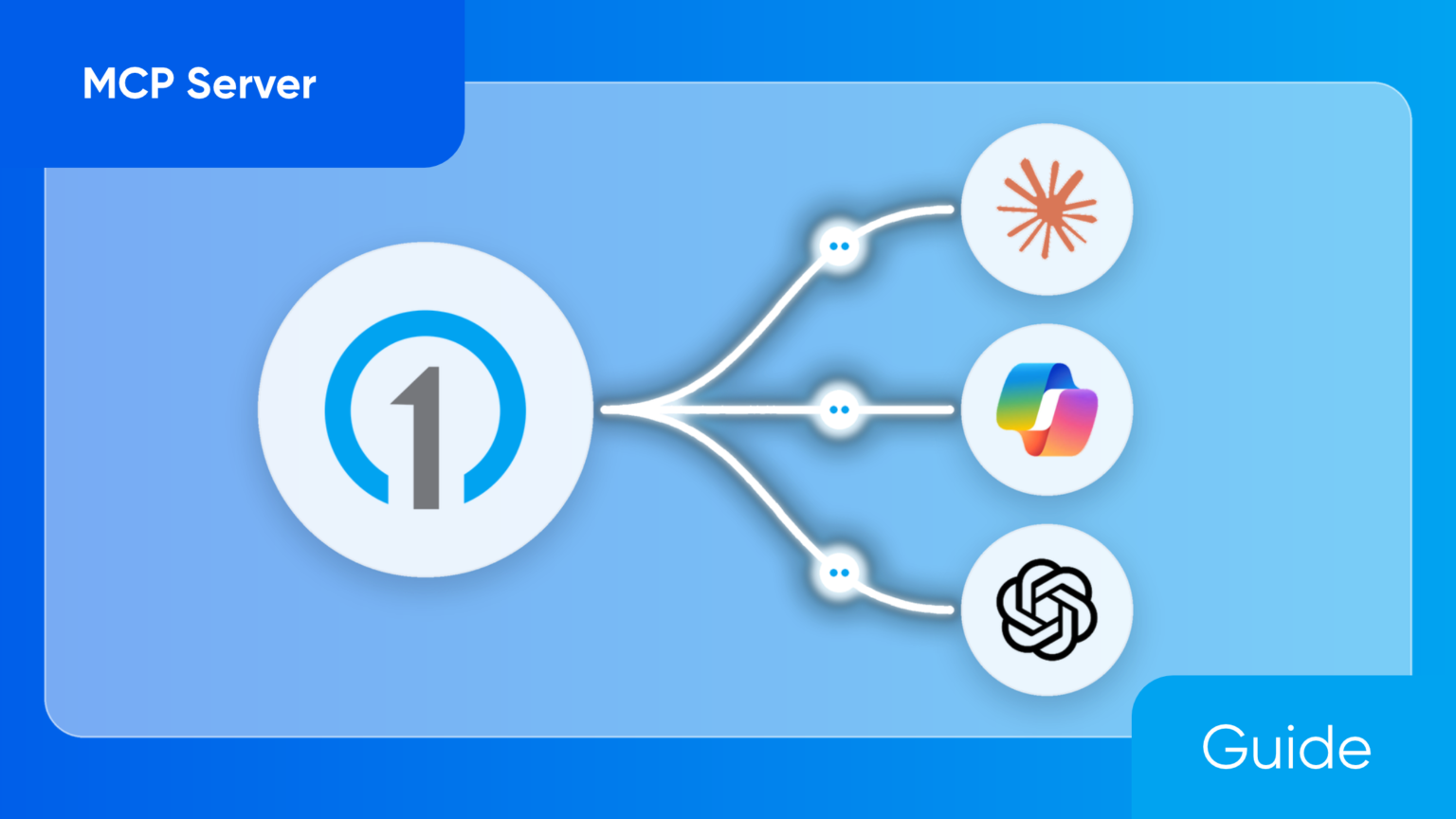
The OnePlan MCP Server connects your OnePlan portfolio to AI assistants like Claude, ChatGPT and Microsoft Copilot. Instead of navigating dashboards and grids, you ask questions and request changes in plain language, and the assistant works inside your existing OnePlan permissions. It is available now in preview for approved OnePlan customers.
For executives, portfolio leaders and the teams behind them, it brings AI in project portfolio management out of the demo and into daily work. Portfolio data has always been powerful but hard to reach. The people who need it most, from executives to finance partners, rarely live in the PPM tool. The MCP Server brings that data to where they already work: the AI assistant they use every day.
That means you can ask which initiatives are running over budget, a resource manager can compare team capacity before shifting staff, and an executive can get a status summary without opening a single report.
Key facts: OnePlan MCP Server
- What it is: A Model Context Protocol (MCP) server that connects OnePlan’s strategic portfolio management platform to AI assistants.
- Supported assistants: Claude, ChatGPT (Business, Enterprise and Edu) and Microsoft Copilot.
- What you can do: Ask about portfolios, resources, financials and work plans, and request updates in plain language.
- Security: Each user connects with their own account and existing OnePlan permissions. No delete tools; changes can be previewed before saving.
- Availability: In preview for approved OnePlan customers.
What is an MCP server?
An MCP server is a connector that lets an AI assistant read from and act in a business application. MCP stands for Model Context Protocol, an open standard for connecting AI assistants to external systems. Any assistant that supports MCP can use any MCP server, without custom integration work for each pairing.
The server tells the assistant what it can do, such as “look up a plan’s financials” or “update a task’s status.” When you ask a question, the assistant picks the right tool, calls it as you, and answers from live data rather than from memory.
Why it matters for project portfolio management
Portfolio questions rarely live in one screen. “Which over-budget projects also share resources with our top-priority program?” touches financials, resourcing and portfolio structure at once. An AI assistant connected through MCP can pull from all three in one answer, which is the kind of cross-cutting question PMOs spend hours assembling by hand.
How the OnePlan MCP Server works
- An admin sets it up once. A OnePlan admin completes the MCP Server configuration for your organization.
- Each person connects their assistant. Users link Claude, ChatGPT or Microsoft Copilot to OnePlan with their own OnePlan login.
- Ask in plain language. The assistant answers from live OnePlan data and can request changes, which you review before they’re saved.
The value of putting portfolio data where decisions happen
Most portfolio decisions aren’t made in portfolio software. They happen in board meetings, budget reviews and conversations, often with numbers someone pulled together days earlier. The value of AI in portfolio management isn’t a smarter dashboard. It’s closing the distance between a question and a trustworthy answer.
Less time assembling, more time deciding. You can spend less hours each week gathering status, reconciling spreadsheets and formatting reports. When leaders can ask for what they need directly, the effort shifts from producing information to acting on it.
Answers from the system of record, which remains consistent. Teams are already pasting spreadsheets and status decks into AI tools to get quick answers. That works until the data is out of date or reaches someone it shouldn’t. Connecting AI to the system of record, with its permissions intact, gives people the speed they want without the risk.
Problems surface while they’re still cheap to fix. A budget overrun or an overloaded team is far easier to address in week two than in the quarterly review. When anyone can check the numbers in seconds, issues get caught earlier and course corrections are smaller.
What you can do with the OnePlan MCP Server
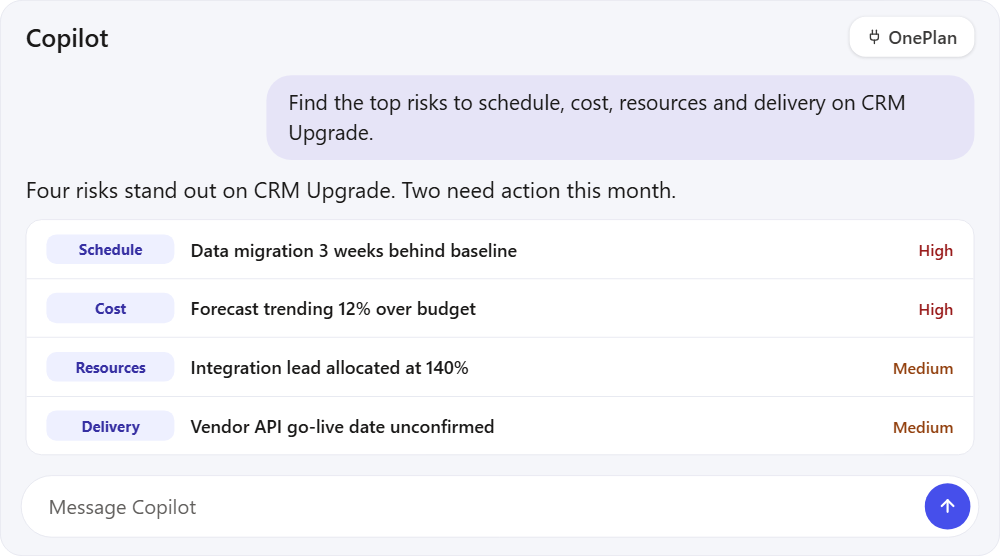
You can check resource availability, create new projects, update task status, generate plan health summaries and analyze risk, all in plain language. Here are example prompts by role.
| Role | Task | Example prompt |
|---|---|---|
| Any user | Get oriented | “List five plans I have access to.” |
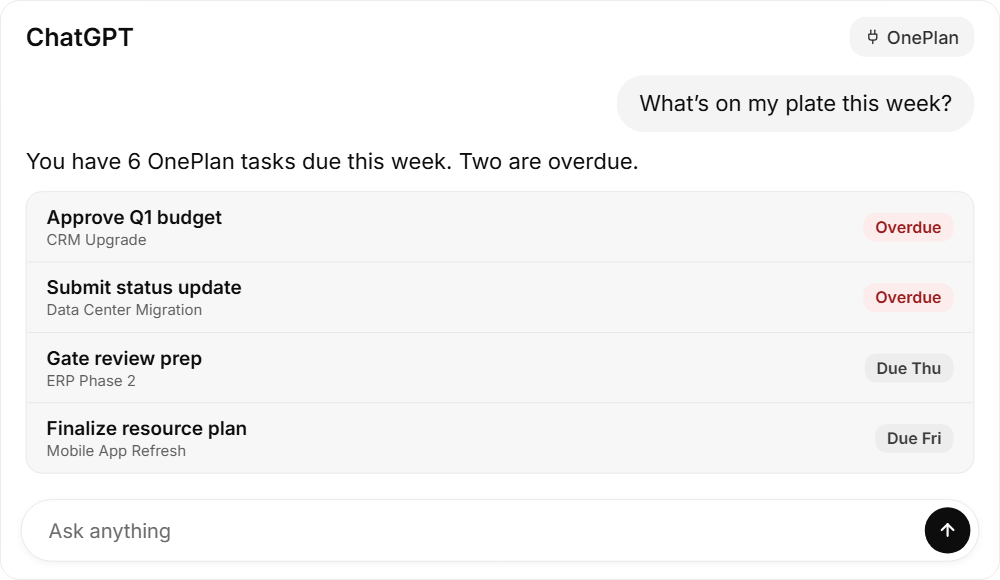
| Team member | Update your work | “What’s on my plate this week? Show overdue items first and mark them complete. Set my other November tasks on Clinical Study Startup to In Progress, 65% done. Show me a preview before submitting.” |
| Resource manager | Rebalance capacity | “Show Jordan Lee’s capacity, allocations and time off for the next three months. Then preview moving 40 hours on CRM Upgrade into the first month. Don’t save yet.” |
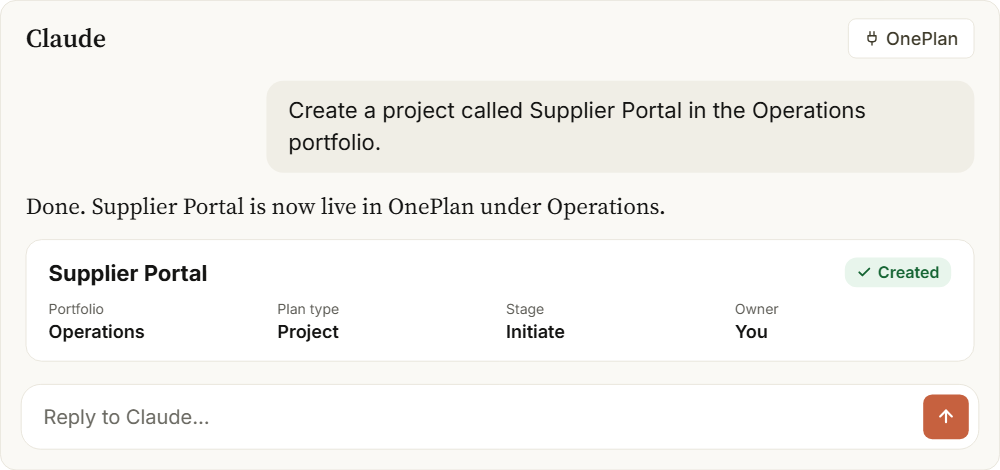
| PMO lead | Intake a new project | “Create a project called Supplier Portal in the Operations portfolio. Set it to Proposed, High priority, running January 1 to December 31, 2027. Draft a description, business case and value statement.” |
| Portfolio manager | Assess risk | “Find the top risks to schedule, cost, resources and delivery on CRM Upgrade. Rank them by severity and recommend mitigations, owners and next steps.” |
| Executive | Get a status read | “Give me a health update and executive summary for the Clinical Study Startup plan, as an HTML dashboard.” |
Updates go a step further than answers. You can ask the assistant to shift an allocation or mark tasks complete, review the proposed change, and save it, all without switching apps.
OnePlan MCP Server security and permissions
The assistant can only see and do what you can already see and do in OnePlan. There is no shared service account and no way around your organization’s access rules.
- Your own account. Each user connects with their own OnePlan login, so every request runs as that person.
- Existing permissions apply. Access restrictions, read-only settings and other controls carry over unchanged.
- No delete tools. The server cannot delete OnePlan data.
- Preview before saving. Supported changes can be reviewed before they are written to OnePlan.
One point to plan for: private plan permissions are enforced inside OnePlan but not automatically in external reports or integrations. If you export or connect private plan data elsewhere, set up filtering and access controls in that system too.
AI assistants supported by the OnePlan MCP Server
The OnePlan MCP Server is documented for three assistants. Other MCP-compatible assistants may work but aren’t tested or supported; see How to Connect Your AI Assistant to OnePlan Using the MCP Server for the general steps.
| Assistant | Requirements | Setup guide |
|---|---|---|
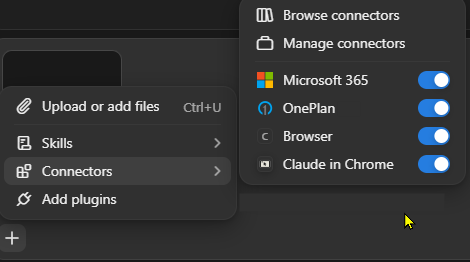
| Claude | Free, Pro or Max: add it to your own account (Free plans allow one custom connector). Enterprise: added by an Owner, Primary Owner or a role with Manage access to Libraries. | How to Connect Claude to OnePlan |
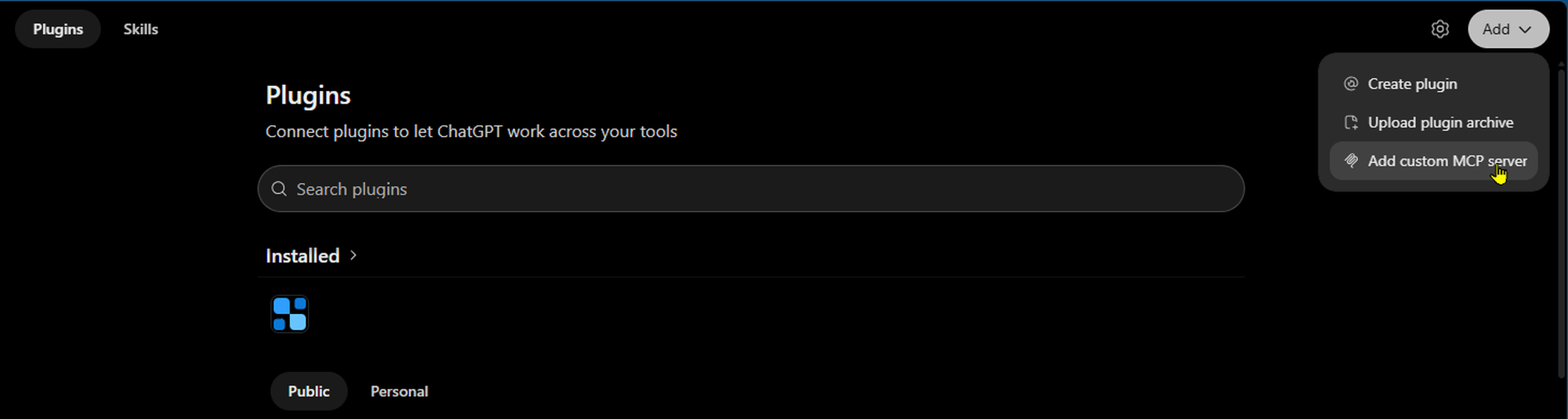
| ChatGPT | Business, Enterprise or Edu workspace, on the web | How to Connect ChatGPT to OnePlan |
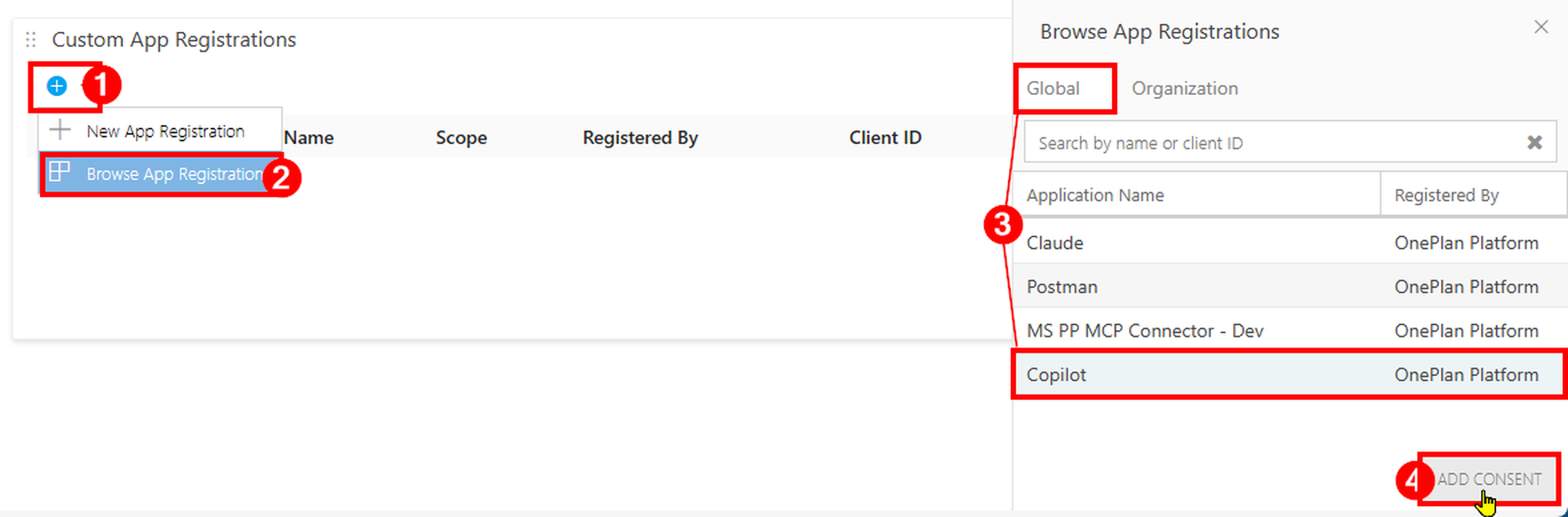
| Microsoft Copilot | Either a Microsoft 365 admin connector or a custom agent built in Copilot Studio | Using a Microsoft 365 admin connector Using Copilot Studio (custom agent) |
Before anyone connects an assistant, a OnePlan admin sets up the MCP Server once for your organization. The MCP Server configuration guided workflow walks through it, including creating the app registration the server uses.
Connecting Claude
Connecting ChatGPT
Connecting CoPilot
Getting started with the OnePlan MCP Server
The OnePlan MCP Server is in preview for approved OnePlan customers. To use it, you need a OnePlan account, one of the supported AI assistants above, and a one-time MCP Server configuration by your OnePlan admin.
Evaluating portfolio management tools? Book a demo to see the MCP Server answer real portfolio questions, from budget variance to resource capacity, in the assistant your teams already use.
Already a OnePlan customer? Ask your Customer Success Manager about joining the preview.
What to look for when connecting AI to your portfolio data
Connecting AI to portfolio data is quickly becoming an expected capability, but approaches vary widely. Whatever platform you use, look for these five things.
- Per-user identity. Each person should connect as themselves, not through a shared account, so every request is traceable to a real user.
- Enforced permissions. The AI should see only what that person can already see, using the access rules you’ve already defined.
- Human review of changes. When AI can update plans or allocations, people should be able to preview and approve changes before they’re saved.
- Choice of AI assistant. Your teams have already picked their AI tools. The connection should work with the assistants they use, not lock them into one.
- Clear limits. Know what the AI can’t do, such as deleting data, and where your access controls stop applying, such as in exported reports.
How AI assistants are changing project portfolio management
Strategic and project portfolio management is shifting from a tool people log into to a system they talk to. Two changes are driving it, and they are reshaping what AI for PMOs looks like.
AI is moving from answering to acting. Early AI assistants summarized documents. With MCP, they can read live business data and carry out authorized changes, such as rebalancing an allocation or updating a plan. The gap between spotting a problem and fixing it gets much shorter.
Portfolio data reaches people who never open the PPM tool. Executives, finance partners and functional leaders depend on portfolio decisions but rarely work in portfolio software. When the data is available in the assistant they already use, more of the organization makes decisions from the same numbers.
In the news: TechEdge AI on OnePlan and AI-assisted portfolio decisions
When TechEdge AI covered the OnePlan MCP Server launch, it placed the release within a larger shift in strategic and project portfolio management: from tracking whether projects are on schedule toward deciding which investments actually move the business forward.
The piece pointed to three developments shaping the market:
- Agentic enterprise workflows. AI assistants are starting to work directly with business applications and carry out authorized tasks, not just summarize information.
- Outcome-based portfolio management. Organizations are putting more weight on benefits realization, OKRs, ROI and strategic alignment when judging their portfolios.
- Governed AI access. Enterprise adoption depends on assistants respecting identity, permissions and application-level controls.
The coverage also noted that connecting AI to portfolio data shortens the path from spotting a problem to adjusting the plan. It was equally clear about what success depends on: reliable underlying data, well-defined business benefits, sound permission management and human review of AI-suggested changes. Those are the same conditions organizations should weigh with any AI integration, and the ones the checklist above is built around.
Frequently asked questions
What is the OnePlan MCP Server?
It is a connector that lets AI assistants like Claude, ChatGPT and Microsoft Copilot access OnePlan portfolio data. Users can ask questions and request updates in plain language, within their existing OnePlan permissions.
Which AI assistants work with OnePlan?
Claude, ChatGPT (Business, Enterprise and Edu workspaces, on the web) and Microsoft Copilot (through a Microsoft 365 admin connector or Copilot Studio) are documented and supported. Other MCP-compatible assistants may work but aren’t tested.
Is it safe to connect OnePlan to ChatGPT or Claude?
Each user connects with their own account, and the assistant works only within that user’s OnePlan permissions. The server has no tools for deleting data, and supported changes can be previewed before saving.
Can the AI assistant change data in OnePlan?
Yes, within your permissions. You can request updates to plans, resource allocations and task statuses, and review supported changes before they are saved.
Is the OnePlan MCP Server generally available?
Not yet. It is in preview for approved OnePlan customers. Organizations evaluating OnePlan can see it in a demo.
Do I need developers to set it up?
No developers are needed. A OnePlan admin completes a one-time MCP Server configuration, including an app registration. Depending on your assistant and plan, an admin may also need to enable the connector for your workspace, such as an Owner on Claude Enterprise.
See the OnePlan MCP Server in action
Watch it answer real portfolio questions, from budget variance to resource capacity, in the AI assistant your teams already use. Book a demo
The bottom line
For years, enterprise software asked people to come to it: log in, learn the interface, pull the report. That model is ending. Leaders now expect their tools to meet them where they already work, in the AI assistant they’ve chosen, whether that’s Claude, ChatGPT or Microsoft Copilot. OnePlan is built for that shift. Instead of asking your teams to adopt another assistant, we bring trusted portfolio data to the one they already use, with the permissions you’ve already set. The result is simple: faster answers, earlier course corrections and decisions grounded in the same live numbers across the organization, on your terms and in your choice of AI.